> ## Documentation Index
> Fetch the complete documentation index at: https://docs.elisainteractive.com/llms.txt
> Use this file to discover all available pages before exploring further.
# 🏷️How to generate and upload your own catalog
> This guide walks you through generating your own asset catalog to use with Élisa, from selecting suitable assets to generating and customizing your asset data.
## Selecting the right assets
Élisa places assets directly on ground-level surfaces, so be sure that each asset has its **pivot point accurately positioned** at the base.
Supported asset types:
* ✅ **Meshes**
* ✅ **Prefabs** (Unity)
* ✅ **Blueprints** (Unreal)
* ✅ **Models** in your Toolbox (Roblox)
Important considerations:
* Assets with **invalid thumbnails** or **null bounding box dimensions** will be skipped.
* Blueprints dependent on external runtime data may not compute usable dimensions.
*————————————*
* 🛑 **In Unreal Engine** if you're using **Nanite**, it's recommended to **temporarily disable it** on your meshes before generating the catalog.\
When Nanite is enabled, assets may appear **unlit or material-less** in the extracted thumbnails.\
You can safely re-enable Nanite after the catalog generation is complete.
* ⚠️ **In Roblox** the catalog is made dynamically with your **Inventory** in you **Toolbox**!
***
## Generating a Catalog
Once your assets are selected in the **Content Browser**, generate the catalog:
### Option 1:
1. Open `Edit > Project Settings > Plugins > Elisa > Descriptions` tab
2. Click \*\*Generate Catalog \*\*or \*\*replace catalog \*\*(if already catalog exist) button.
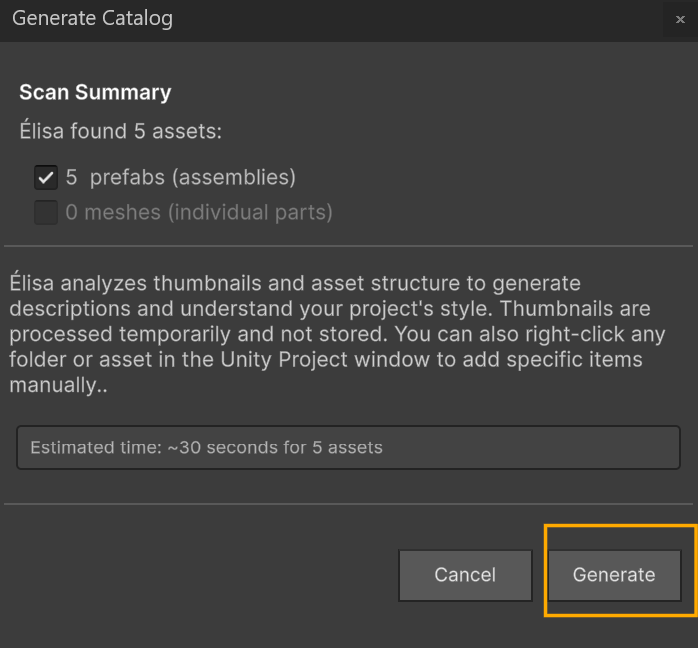
3. Élisa scan the entire **project files** assets and diplays the number of assets contained in a window.
4. Press **Generate** button
 ### Option 2:
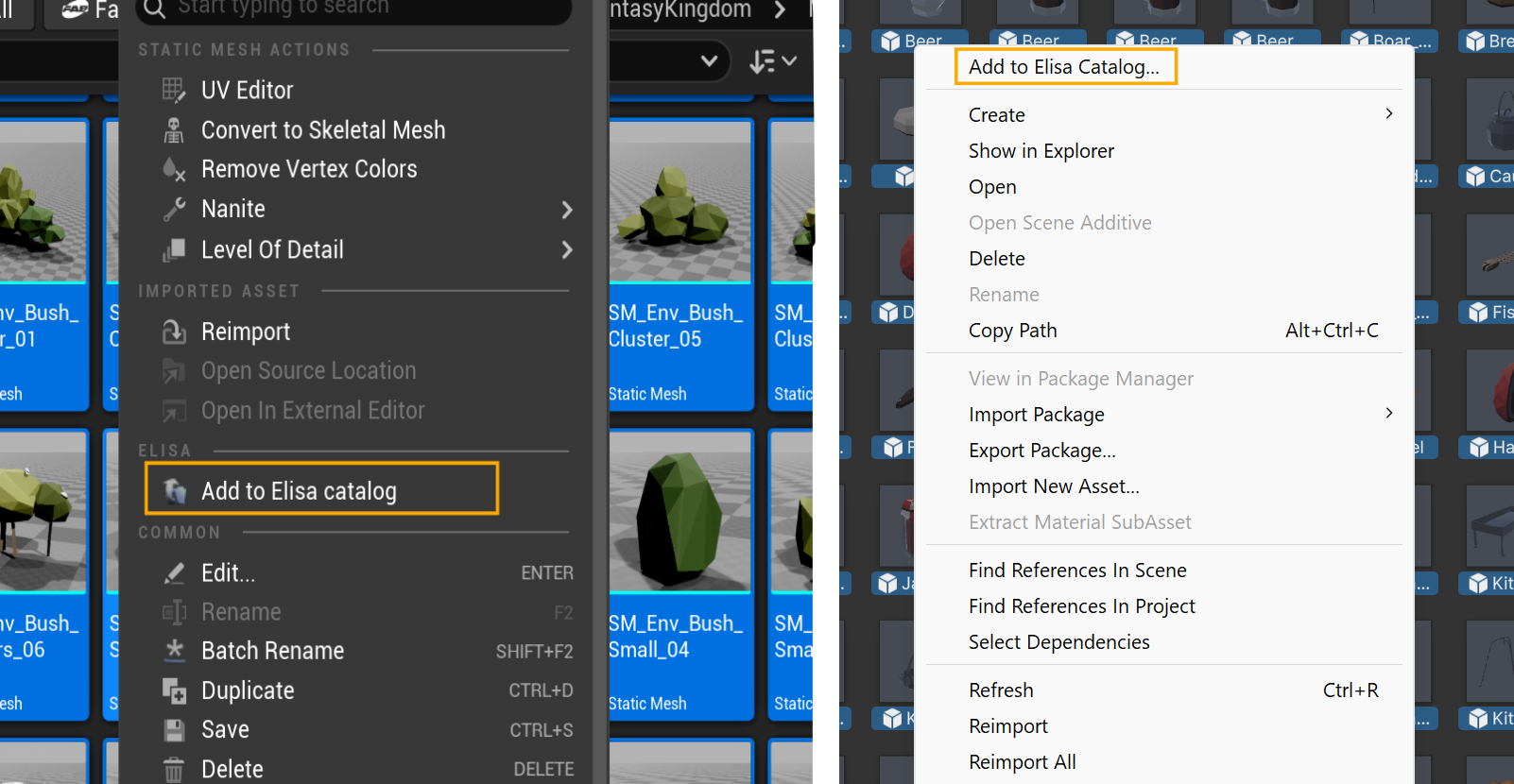
1. Right-click the selection and choose `Add to Catalog`.
2. Élisa scan the folder or selected assets and diplays the number of assets contained in a window.
3. Press **Generate** button
### Option 2:
1. Right-click the selection and choose `Add to Catalog`.
2. Élisa scan the folder or selected assets and diplays the number of assets contained in a window.
3. Press **Generate** button
 On **Roblox**, **the catalog is generated by Élisa itself**. All assets in your toolbox will be added to your catalog and be ready to be used by you and Élisa.
##### Let an LLM do the writing for you!
Paste your **asset pack URL** into your favorite chat interface and use this prompt:
> *"Analyze every item in the catalog and write 3-5 sentences (60-120 words) that capture their shared stylistic and technical DNA. Cover dominant art styles/eras, modelling techniques, color palette and lighting mood, and any typical functional contexts. Omitting all file paths, IDs, prices, or seller names."*
3. The system will display a progress bar while it:
* Analyze bounding boxes, compute asset sizes, and generates thumbnails.
* Exports the catalog as a CSV file.
4. Once generation completes:
* Élisa shows a **Generation completed** notification in the progress bar.
* The catalog is **automatically uploaded and set as active** - no manual upload needed!
* Élisa is instantly ready to use the new catalog!
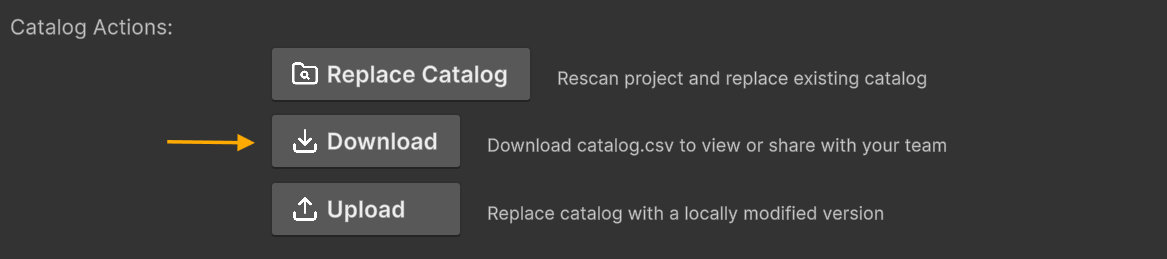
You can download the currently active catalog at any time from the **⚙️ Élisa Settings** panel:
On **Roblox**, **the catalog is generated by Élisa itself**. All assets in your toolbox will be added to your catalog and be ready to be used by you and Élisa.
##### Let an LLM do the writing for you!
Paste your **asset pack URL** into your favorite chat interface and use this prompt:
> *"Analyze every item in the catalog and write 3-5 sentences (60-120 words) that capture their shared stylistic and technical DNA. Cover dominant art styles/eras, modelling techniques, color palette and lighting mood, and any typical functional contexts. Omitting all file paths, IDs, prices, or seller names."*
3. The system will display a progress bar while it:
* Analyze bounding boxes, compute asset sizes, and generates thumbnails.
* Exports the catalog as a CSV file.
4. Once generation completes:
* Élisa shows a **Generation completed** notification in the progress bar.
* The catalog is **automatically uploaded and set as active** - no manual upload needed!
* Élisa is instantly ready to use the new catalog!
You can download the currently active catalog at any time from the **⚙️ Élisa Settings** panel:
 Same for Unity, in this section of the **⚙️ Élisa Settings** panel:
 Roblox catalogs are dynamically made from your **Inventory**
## Uploading your Catalog CSV manually
If you've built your own catalog `.csv`, you can upload it from the **⚙️ Élisa Settings**:
Simply click `Upload` to select and load your `.csv` file:
Roblox catalogs are dynamically made from your **Inventory**
## Uploading your Catalog CSV manually
If you've built your own catalog `.csv`, you can upload it from the **⚙️ Élisa Settings**:
Simply click `Upload` to select and load your `.csv` file:
 Once uploaded, the new catalog becomes immediately active. You'll see its name displayed and can edit its description anytime.
## Updating an Existing Catalog (Append or Replace)
Élisa supports **appending new assets** to your current catalog or **replacing** it entirely from the **Generate Catalog** window.
1. Select the assets you want to add and Right-click the selection and choose `Add to Catalog`.
2. In the **Update Existing Catalog** section, choose one of the following:
* **Append to catalog**: Adds the selected assets to your current catalog.
* **Generate a new catalog (replace existing entries)**: Rebuilds the catalog using only the selected assets.
Once uploaded, the new catalog becomes immediately active. You'll see its name displayed and can edit its description anytime.
## Updating an Existing Catalog (Append or Replace)
Élisa supports **appending new assets** to your current catalog or **replacing** it entirely from the **Generate Catalog** window.
1. Select the assets you want to add and Right-click the selection and choose `Add to Catalog`.
2. In the **Update Existing Catalog** section, choose one of the following:
* **Append to catalog**: Adds the selected assets to your current catalog.
* **Generate a new catalog (replace existing entries)**: Rebuilds the catalog using only the selected assets.
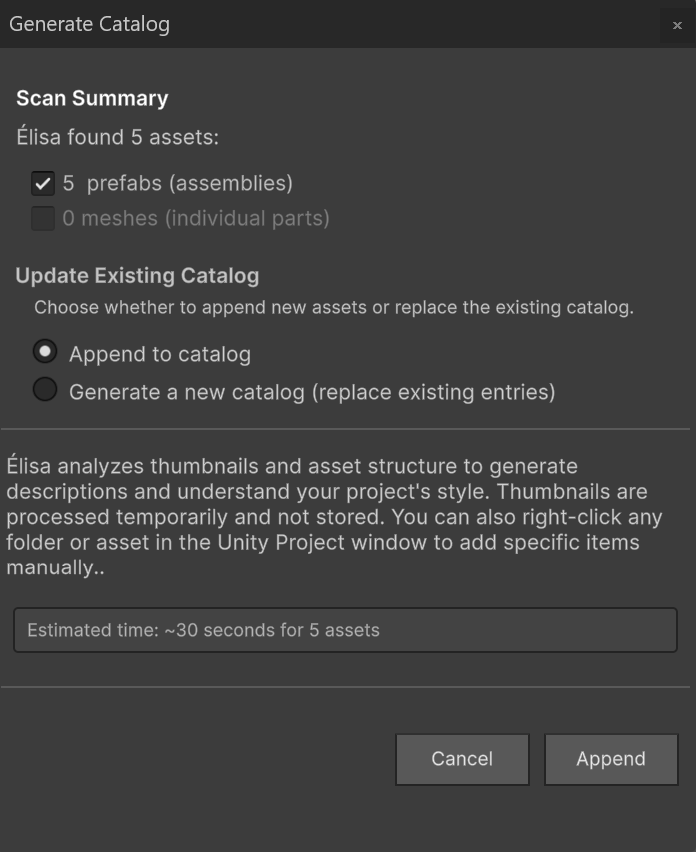 3. Click **Append** or **Replace Catalog** button to start the process.
Replacing a catalog overwrites the existing entries. Use **Append** if you want to keep your current assets.
## Creating your own Catalog CSV from scratch
If you'd like to define a custom asset catalog manually, you can construct your own `catalog.csv` file. Élisa supports this advanced workflow by reading structured `.csv` files with detailed asset metadata.
Your `catalog.csv` **should use the following format**:
| index | description | path | x\_size | y\_size | z\_size | rotation\_for\_facing\_forward |
| ----- | --------------------------------------- | ---------------------------- | ------- | ------- | ------- | ------------------------------ |
| 0 | A quaint cottage featuring a chimney... | /Game/Assets/SM\_Building\_1 | 790.85 | 864.28 | 989.85 | -90 |
| 1 | A house with a blue roof and porch... | /Game/Assets/SM\_Building\_2 | 968.24 | 1345.69 | 1517.63 | 180 |
### Required columns
* **index**: A unique row identifier.
* **description**: A short text describing the asset.
* **path**: The full package asset path from your Unreal project.
* **x\_size / y\_size / z\_size**: Bounding box dimensions in centimeters.
* **rotation\_for\_facing\_forward**: The rotation in degrees Élisa applies to align the asset's front side with the +X axis.
Important Notes:
* **All dimensions** must be in **the Engine units** (cm, m, etc...).
* Descriptions help Élisa provide context or selection feedback during placement.
* Ensure no header row is missing or misnamed - column names must match exactly.
***
3. Click **Append** or **Replace Catalog** button to start the process.
Replacing a catalog overwrites the existing entries. Use **Append** if you want to keep your current assets.
## Creating your own Catalog CSV from scratch
If you'd like to define a custom asset catalog manually, you can construct your own `catalog.csv` file. Élisa supports this advanced workflow by reading structured `.csv` files with detailed asset metadata.
Your `catalog.csv` **should use the following format**:
| index | description | path | x\_size | y\_size | z\_size | rotation\_for\_facing\_forward |
| ----- | --------------------------------------- | ---------------------------- | ------- | ------- | ------- | ------------------------------ |
| 0 | A quaint cottage featuring a chimney... | /Game/Assets/SM\_Building\_1 | 790.85 | 864.28 | 989.85 | -90 |
| 1 | A house with a blue roof and porch... | /Game/Assets/SM\_Building\_2 | 968.24 | 1345.69 | 1517.63 | 180 |
### Required columns
* **index**: A unique row identifier.
* **description**: A short text describing the asset.
* **path**: The full package asset path from your Unreal project.
* **x\_size / y\_size / z\_size**: Bounding box dimensions in centimeters.
* **rotation\_for\_facing\_forward**: The rotation in degrees Élisa applies to align the asset's front side with the +X axis.
Important Notes:
* **All dimensions** must be in **the Engine units** (cm, m, etc...).
* Descriptions help Élisa provide context or selection feedback during placement.
* Ensure no header row is missing or misnamed - column names must match exactly.
***