> ## Documentation Index
> Fetch the complete documentation index at: https://docs.elisainteractive.com/llms.txt
> Use this file to discover all available pages before exploring further.
> Discover how to capture screenshots within Élisa, how Élisa integrates them into your sessions, and details on screenshot storage and recovery.
# Screenshots
## Taking a screenshot
To take a screenshot within Élisa, use the **leftmost button** in the chat bar:
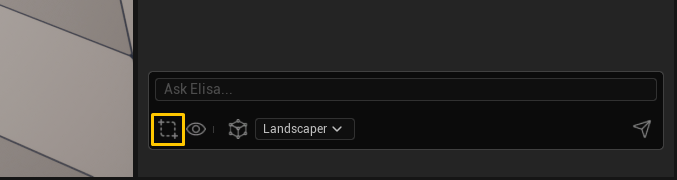 This captures the current **viewport exactly as the user sees it**—including camera angle, resolution, and current scene visibility. Once clicked, the captured image is automatically attached to your next chat message.
You can also cancel the screenshot before sending, using the **X button** on the thumbnail.
🚧This Feature is not yet on **Roblox**, this will be added shortly
***
## How does Élisa work with screenshots
Screenshots are **integrated into the conversation history**, allowing you to visually anchor your prompts. Élisa analyzes these screenshots to understand spatial references, placement intent, and surrounding context.
Élisa **doesn’t keep past screenshots** beyond the message they were sent in, but it remembers what it inferred (like asset positions). So references like *“that bench near the tree”* may still work — though it **can’t re-analyze the image**.
***
## View as Élisa
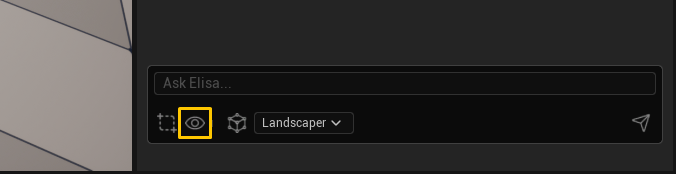
The **"View as Élisa"** button (second from the left in the chat bar) reorients your camera to match Élisa's internal understanding of the surface layout:
This captures the current **viewport exactly as the user sees it**—including camera angle, resolution, and current scene visibility. Once clicked, the captured image is automatically attached to your next chat message.
You can also cancel the screenshot before sending, using the **X button** on the thumbnail.
🚧This Feature is not yet on **Roblox**, this will be added shortly
***
## How does Élisa work with screenshots
Screenshots are **integrated into the conversation history**, allowing you to visually anchor your prompts. Élisa analyzes these screenshots to understand spatial references, placement intent, and surrounding context.
Élisa **doesn’t keep past screenshots** beyond the message they were sent in, but it remembers what it inferred (like asset positions). So references like *“that bench near the tree”* may still work — though it **can’t re-analyze the image**.
***
## View as Élisa
The **"View as Élisa"** button (second from the left in the chat bar) reorients your camera to match Élisa's internal understanding of the surface layout:
 This alignment is powerful when used **in combination with screenshots**:
* You can take a screenshot **from Élisa's perspective**, giving her precise spatial cues.
* It enables phrasing like *“add a prop in the last third of the surface, from right to left”*, or *“top-left corner”*...
***
## Where are screenshots saved
This is **specific to the Unreal Engine plugin**. We do not save any screenshot locally in Unity's version of the plugin.
Screenshots are saved **locally** on your machine at:
```bash theme={null}
/Saved/Screenshots/Elisa/
```
This alignment is powerful when used **in combination with screenshots**:
* You can take a screenshot **from Élisa's perspective**, giving her precise spatial cues.
* It enables phrasing like *“add a prop in the last third of the surface, from right to left”*, or *“top-left corner”*...
***
## Where are screenshots saved
This is **specific to the Unreal Engine plugin**. We do not save any screenshot locally in Unity's version of the plugin.
Screenshots are saved **locally** on your machine at:
```bash theme={null}
/Saved/Screenshots/Elisa/
```