> ## Documentation Index
> Fetch the complete documentation index at: https://docs.elisainteractive.com/llms.txt
> Use this file to discover all available pages before exploring further.
# ⚙️ Élisa Settings
> Access and configure Élisa's settings including API keys, asset catalogs, and visual effects to tailor Élisa to your workflow.
## Accessing Élisa Settings
To configure Élisa's plugin options, go to:
```
Edit > Elisa Settings...
```
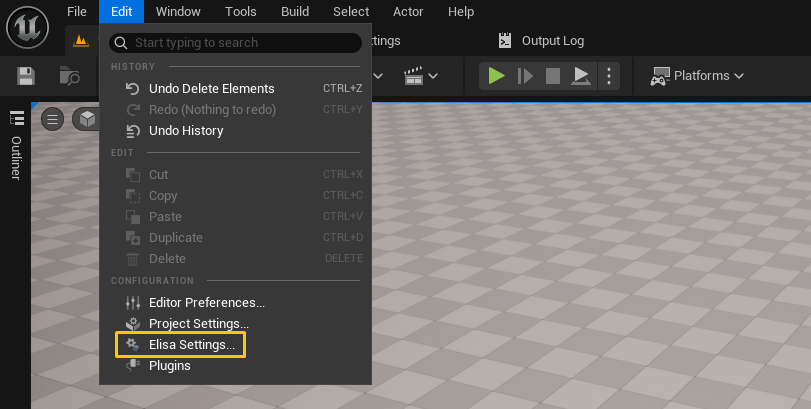 This opens the plugin configuration panel for Élisa within Unreal Engine.
```
Edit > Project Settings > Plugins > Elisa
```
You can access all of Élisa's settngs from that panel.
```
Plugins > Elisa > Settings
```
or
```
Toolbar > Plugin > Settings
```
🚧 Note that Elisa for Roblox is not out yet, but stay tuned for it's release!
***
## Overview of Settings
The **Élisa Settings** panel is divided into several collapsible sections:
### API Keys
* **Élisa API Key**: Set you Elisa API key here and click **Validate** to validate its information.
* Validation feedback will appear once the key is confirmed.
### Project
* **Registered Project**: Displays your current linked Élisa project.
* **External API Keys**: Shows external API keys (e.g., `GOOGLE_API_KEY`) used by specific agents.
### Catalog Management
* **Current Catalog**: Shows your currently active catalog file (e.g., `'catalog.csv'`).
* **Upload Catalog**: Manually upload your own CSV-based asset catalog.
* **Download Catalog**: Once a valid catalog is uploaded, you can download it at any time.
* **Catalog Description**: Describes the catalog's theme, content, and use case.
For **Roblox**, this does not apply. Assets added to the **Toolbox** will be **automatically added to your catalog**.
You can also generate your catalog using the [Generate Catalog](https://docs.elisainteractive.com/essentials/generate-your-catalog) function from your project's files, and it will automatically appear here once uploaded.
***
### Effects
* **Toggle Action Delay**: Enables or disables delay between Élisa actions (asset placement).
* **Action Delay Length**: Duration of the delay, useful for debugging or cinematic sequencing.
This opens the plugin configuration panel for Élisa within Unreal Engine.
```
Edit > Project Settings > Plugins > Elisa
```
You can access all of Élisa's settngs from that panel.
```
Plugins > Elisa > Settings
```
or
```
Toolbar > Plugin > Settings
```
🚧 Note that Elisa for Roblox is not out yet, but stay tuned for it's release!
***
## Overview of Settings
The **Élisa Settings** panel is divided into several collapsible sections:
### API Keys
* **Élisa API Key**: Set you Elisa API key here and click **Validate** to validate its information.
* Validation feedback will appear once the key is confirmed.
### Project
* **Registered Project**: Displays your current linked Élisa project.
* **External API Keys**: Shows external API keys (e.g., `GOOGLE_API_KEY`) used by specific agents.
### Catalog Management
* **Current Catalog**: Shows your currently active catalog file (e.g., `'catalog.csv'`).
* **Upload Catalog**: Manually upload your own CSV-based asset catalog.
* **Download Catalog**: Once a valid catalog is uploaded, you can download it at any time.
* **Catalog Description**: Describes the catalog's theme, content, and use case.
For **Roblox**, this does not apply. Assets added to the **Toolbox** will be **automatically added to your catalog**.
You can also generate your catalog using the [Generate Catalog](https://docs.elisainteractive.com/essentials/generate-your-catalog) function from your project's files, and it will automatically appear here once uploaded.
***
### Effects
* **Toggle Action Delay**: Enables or disables delay between Élisa actions (asset placement).
* **Action Delay Length**: Duration of the delay, useful for debugging or cinematic sequencing.