> ## Documentation Index
> Fetch the complete documentation index at: https://docs.elisainteractive.com/llms.txt
> Use this file to discover all available pages before exploring further.
# 🖌️ Working on Surfaces
> Learn how to create, restore, and manage Élisa design sessions directly on surfaces, including best practices for maintaining your workspace.
## Recognized surfaces
Élisa recognizes two types of surfaces: **meshes** and **landscapes**.
You can select **multiple actors at once** to define a single design surface.\
Élisa will treat them as one continuous layout area.
 You can use any **flat or uneven** surface to start a new design session.
***
## Creating a Design Session
You can create a new Élisa Design Session by **right-clicking** on a surface and selecting **`Design with Élisa`** from the Élisa category in the context menu.
This will open the **`Élisa Designer window`**, Élisa's interactive chat interface for **designing your layout** and **managing your conversation**.
You can use any **flat or uneven** surface to start a new design session.
***
## Creating a Design Session
You can create a new Élisa Design Session by **right-clicking** on a surface and selecting **`Design with Élisa`** from the Élisa category in the context menu.
This will open the **`Élisa Designer window`**, Élisa's interactive chat interface for **designing your layout** and **managing your conversation**.
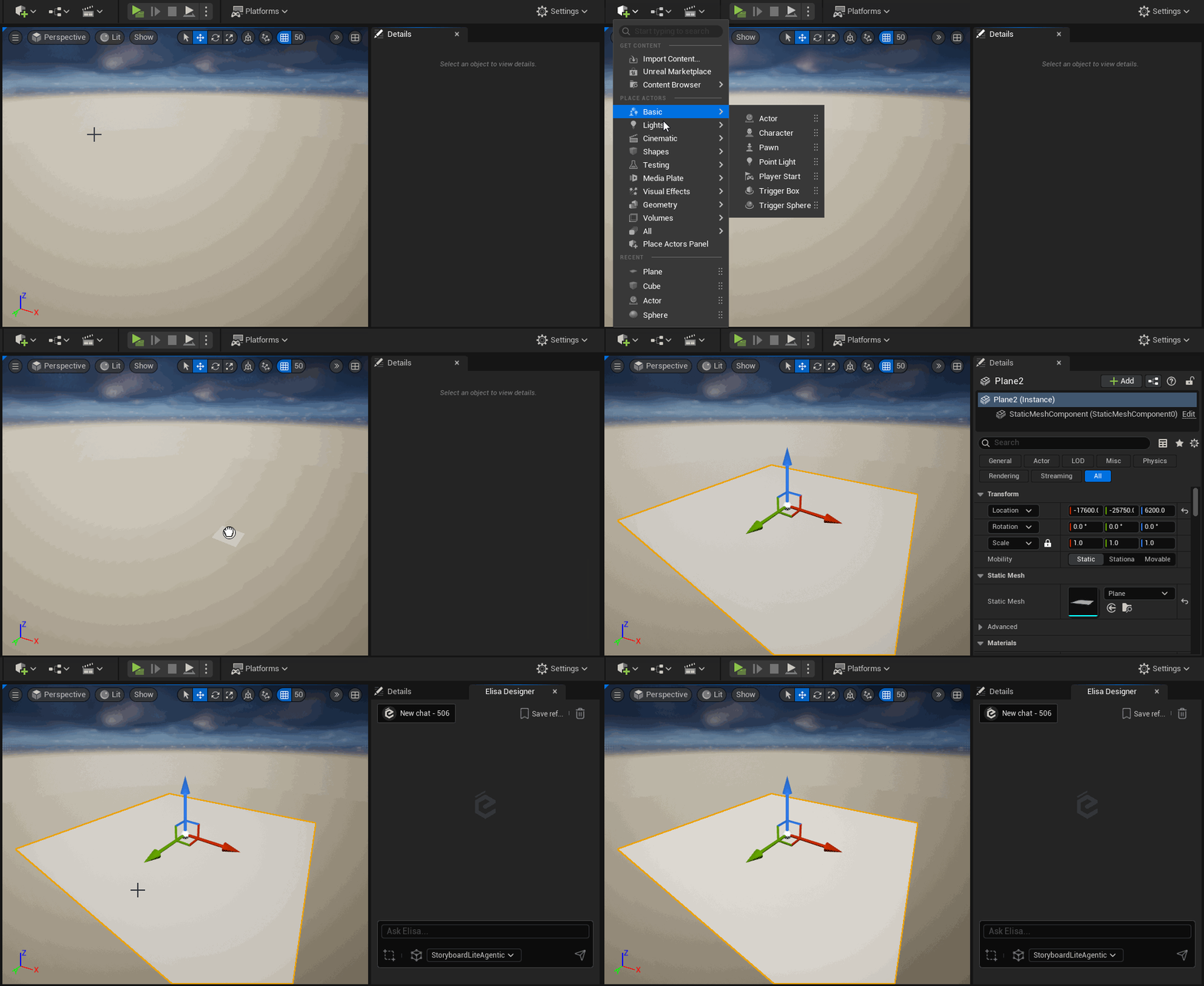 If you haven't already, we recommend docking the `Élisa Designer` tab in your editor layout to keep it easily accessible.
***
## Restoring a Design Session
If you've closed the `Élisa Designer` tab, or your editor, you can easily **resume your previous chat sessions** by **right-clicking** again on the surface previously used by Élisa, and \*\*restore your session \*\*from there.
If you haven't already, we recommend docking the `Élisa Designer` tab in your editor layout to keep it easily accessible.
***
## Restoring a Design Session
If you've closed the `Élisa Designer` tab, or your editor, you can easily **resume your previous chat sessions** by **right-clicking** again on the surface previously used by Élisa, and \*\*restore your session \*\*from there.
 On **Unity**, **double click on the** **Elisa Bubble** and you will come back to the previous chats you had for this Elisa instance.
***
## Recognized surfaces
Élisa recognizes two types of surfaces: **meshes** and **landscapes**.
You can select **multiple actors at once** to define a single design surface.\
Élisa will treat them as one continuous layout area.
You can use any **flat or uneven** surface to start a new design session.
***
## Creating a Design Session
You can create a new Élisa Design Session by **right-clicking** on a surface and selecting `Design with Élisa` from the Élisa category in the context menu.
This will open the `Élisa Designer window`, Élisa's interactive chat interface for **designing your layout** and **managing your conversation**.
If you haven't already, we recommend docking the `Élisa Designer` tab in your editor layout to keep it easily accessible.
***
## Restoring a Design Session
If you've closed the `Élisa Designer` tab, or your editor, you can easily **resume your previous chat sessions** by **right-clicking** again on the surface previously used by Élisa, and \*\*restore your session \*\*from there.
On **Unity**, **double click on the** **Elisa Bubble** and you will come back to the previous chats you had for this Elisa instance.
***
## Duplicating a Surface
You can duplicate a surface by **Pressing the + Square** to iterate on it or to have a second variation of the same design that you were going for.
On **Unity**, **double click on the** **Elisa Bubble** and you will come back to the previous chats you had for this Elisa instance.
***
## Recognized surfaces
Élisa recognizes two types of surfaces: **meshes** and **landscapes**.
You can select **multiple actors at once** to define a single design surface.\
Élisa will treat them as one continuous layout area.
You can use any **flat or uneven** surface to start a new design session.
***
## Creating a Design Session
You can create a new Élisa Design Session by **right-clicking** on a surface and selecting `Design with Élisa` from the Élisa category in the context menu.
This will open the `Élisa Designer window`, Élisa's interactive chat interface for **designing your layout** and **managing your conversation**.
If you haven't already, we recommend docking the `Élisa Designer` tab in your editor layout to keep it easily accessible.
***
## Restoring a Design Session
If you've closed the `Élisa Designer` tab, or your editor, you can easily **resume your previous chat sessions** by **right-clicking** again on the surface previously used by Élisa, and \*\*restore your session \*\*from there.
On **Unity**, **double click on the** **Elisa Bubble** and you will come back to the previous chats you had for this Elisa instance.
***
## Duplicating a Surface
You can duplicate a surface by **Pressing the + Square** to iterate on it or to have a second variation of the same design that you were going for.
 ## \\
Clearing a Surface
If an Élisa Design Session already exists on a surface, you will notice a **trash icon** at the top right of the **Élisa's chat window**.
When clearing a surface, you will **remove all objects placed by Élisa** on that surface and **delete the associated chat history**.
## \\
Clearing a Surface
If an Élisa Design Session already exists on a surface, you will notice a **trash icon** at the top right of the **Élisa's chat window**.
When clearing a surface, you will **remove all objects placed by Élisa** on that surface and **delete the associated chat history**.
