Files and images are used to enrich your prompt by providing additional context to Elisa agents. When you attach content, it becomes part of the conversation history and can be referenced directly in your prompts. Elisa agents use this contextual information to better understand intent, constraints, visual references, and existing data, resulting in more accurate and relevant design or placement decisions.

Attaching files

  1. Click the paperclip icon in the chat bar.
  2. A window opens allowing you to attach files or re-attach a previously uploaded file. Click Upload files to add a new file.
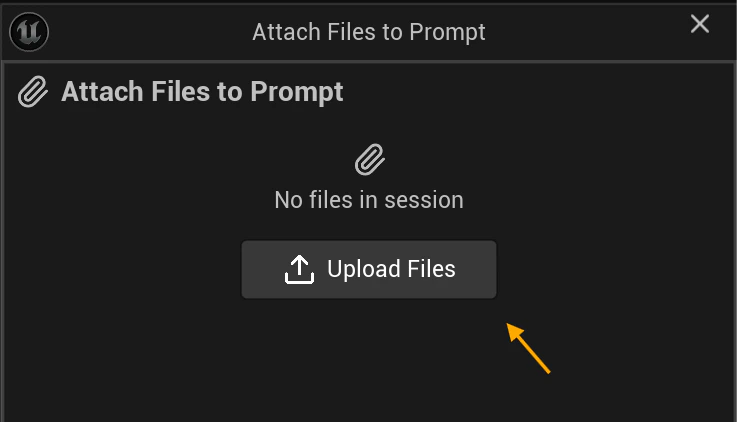
Upload files dialog
  1. Use the checkbox next to each file to choose which files to attach to the chat.
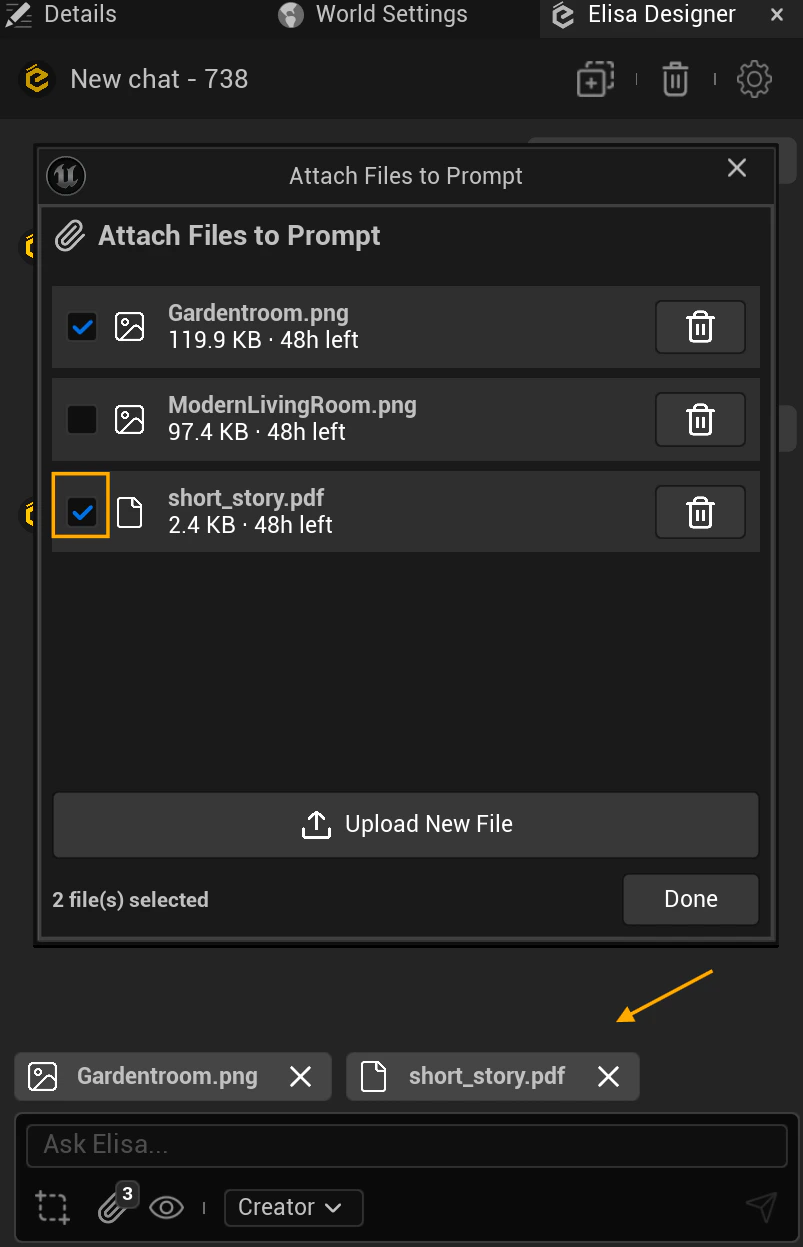
File selection list
  1. Click the trash icon to permanently delete a file from the cloud.
You can also remove files before sending a message by clicking the X on the file thumbnail.

Supported file types

Elisa supports the following file formats:
  • .pdf
  • .csv
  • .json
  • .txt
  • .png, .jpg, .jpeg, .heic, .webp

File persistence and re-attaching

Uploaded files are persisted and can be reused across different chats. As long as a file is still available, you can re-attach it without uploading it again. Each file displays its remaining availability in the attachment panel. You only need to upload a file again if it has expired or you deleted it.